


| 03-30-2006, 02:08 AM | #1 |
How To Alpha Skin In Photoshop
By Orc_Tamer Alpha skinning is a technique used in Warcraft 3 to remove unnecessary parts from a model ex. a weapon. I will be using the texture of the hero "Demon Hunter". One thing I have to point out is that some models part cannot be alpha out because their team color gets in the way ex. Blademaster's Flag. Just check if it works for your model. Open up your skin/texture and go to Window > Channels 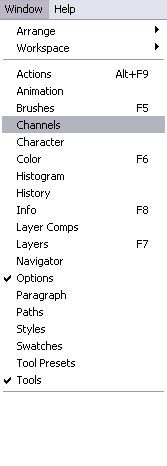 A new window will appear and will have RGB, Red, Green, Blue 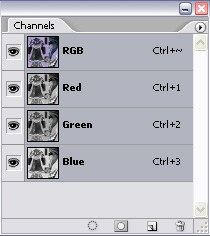 Go to the bottom of the window and look for the icon that says "Create New Channel". A new layer called "Alpha 1" will appear. 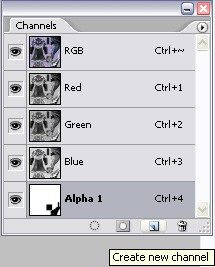 Now here comes the fun part. :) Select all you layers and make them visible (click the box with the eye). You should have your image all red, don't worry about that just ignore that. Select your Alpha Layer and start to edit your skin. Black = Remove White = Add When your finished with your skin you should have something like this. 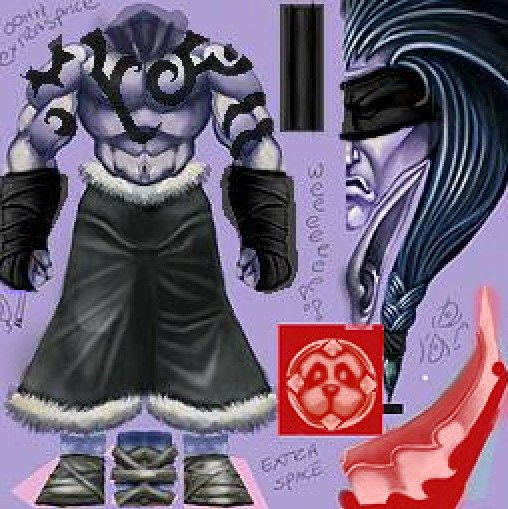 After that just convert it into .blp and import it to your map and change the path to fit your character. Here are my results: 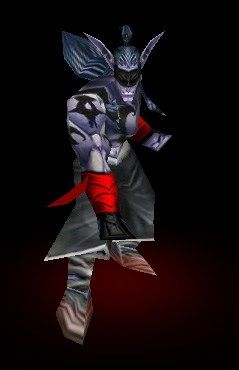 Have fun Alpha Skinning! - Orc_Tamer |
| 03-30-2006, 09:53 AM | #2 |
what also works in photoshop, is the ERASER tool. Just make any part you want alphaed colorless and WHAM its gone. So much easyer then fudging with alpha channels -_- allthough i do approve this tut, its usefull, i heard some photoshop versions do not support the eraser-alphaing. |
| 05-07-2006, 02:54 PM | #3 |
This is very useful to me, thnx xD |
| 07-27-2006, 12:46 PM | #4 |
yeah, I had use of this tut 'cause my ps won't let me save .tga with transparency |
| 09-28-2006, 12:46 PM | #5 |
is it possible to do lil' transparent texture - if I want to do something crystal? |
| 10-05-2006, 09:02 AM | #6 |
ive been playing round in photoshop CS2 and i cant remove parts ... i do it all properly but what i paint in black on the alpha1 channel doesnt dissapear. i used different opacities of black and i only get the team colour where i want the part to dissapear any ideas? cheers Pantsonnos (email me or get me on msn @ [email protected] if possible) |
| 10-19-2006, 06:03 PM | #7 |
What you're trying to make transparent(alpha erase) is probably covered by a team color. Also note that the alpha channel is either black or white in places, nothing else. Look on the model for where it's teamcolored. |
| 07-17-2007, 10:00 PM | #8 |
do you just do this in like a normal photo shop ? and how do u get the textures to photo shop srry sometimes im just slow so..... thank you for the anwser |
| 11-26-2007, 03:16 AM | #9 |
ya so i was making a skin in photoshop and i saved it as a tga, then i went in and copy my alpha channel from PS to the tga file and saved it. after importing the new blp i made using image extractor it came out looking transparent where the team color should be anyone know how to fix this? |
| 11-26-2007, 11:29 AM | #10 | |||||
Quote:
To get a proper ghostly effect like you want you have to change the material to something like additive reather then alphaing it though. Howevere you look at it, you'll have to do a model edit. Quote:
Quote:
Quote:
Quote:
And just a note to everyone: Some bits of a model simply can not be alpha-ed. They dont have teamcolor, and they dont support the alpha channel. |
| 01-06-2008, 10:19 PM | #11 |
does it work on gimp? cuz i tried and it did nothing though i might have done it wrong. could you make a more discriptive tutorial? |
| 08-18-2009, 11:26 PM | #12 |
Does anyone know about a problem that makes the skin transparent ingame without having even touched the alpha channels? |